Showing posts with label pc tutorial. Show all posts

Tuesday, 15 November 2016

How to Know If A Computer Has Virus, Spyware, or Malicious Programs

As human are not free from deficiency syndromes called virus so also our computers are not free from malicious software (malware) called virus, but one thing common about both the human virus and computer virus is that these virus infections are directly or indirectly caused by oneself.
Detect Computer virus spyware malware
What does malicious software (virus) really mean? It is software that is specifically designed to gain access or damage a computer without the knowledge of the owner.

How to Know if Your Computer Has Virus, Spyware, or Malicious Programs


  • The computer is really slow.
  • Nothing responds when you click on an icon and/or your software applications do not work correctly anymore.
  • The system reboots, freezes up, or crashes for no reason.
  • Your antivirus security system and/or firewall are suddenly disabled.
  • You can’t access your disk drive or hard drive.
  • You are suddenly unable to print.
  • You start seeing pop up advertisement windows at unexpected (random) times or unusual programs that start automatically.
  • You have major problems trying to install or download antivirus software or any other software.
  • You seem to have suddenly lost the icons on the desktop and/or all other program files in your folders.
  • New browser homepage, new toolbars and/or unwanted websites accessed without your permission.


Conclusion

As I said earlier computer virus infection are most time directly or indirectly caused by oneself, by installing crack version of a software, downloading software from unreliable website etc.

Note: Some malware (virus) can over power most antivirus software and it will make the computer vulnerable for malicious actions.

The major way to keep your information or document save on your computer is to be mindful of the Software, USB Drive and Website that you associate with your computer.
Read More »

Saturday, 22 October 2016

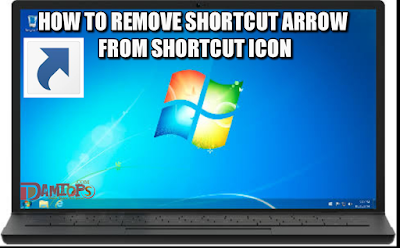
How to Easily Remove Shortcut Arrow From Desktop Icon in Windows

I guess you don't really like the shortcut arrow displayed on your desktop icons, actually to me it makes the desktop icons a bit similar to the other, so I tend to look for a way to remove these arrows from my PC without causing any further issues. I found out there is an easy way to solve this task.
How to remove shortcut arrow from desktop icon
Here I will show you how to easily remove the shortcut arrow from your the desktop icons.

The easiest way to remove shortcut arrows, if you’re willing to download extra software, is to use a tweaking utility. One of the best is Ultimate Windows Tweaker available for window 7, Vistas, 8/8.1, 10.

Ultimate Windows Tweaker is a freeware TweakUI Utility for tweaking and optimizing Windows PC, it was published by the Windows Club. This tool offers lots of tweaking option for windows PC and it happens to be free and it’s a portable tool about 340KB so there’s nothing to install. Just download it, run it, and start tweaking.


Download Ultimate Windows Tweaker for Windows 7 and Vistas, Windows 8 and 8.1, Windows 10.


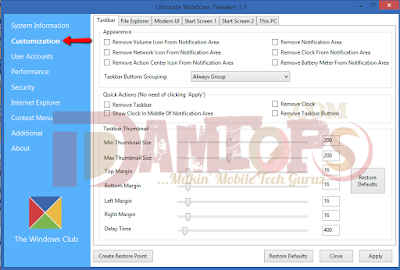
Now, to remove the arrow from desktop icon with Ultimate Windows Tweaker, Unzip the downloaded file and run Ultimate windows tweaker, click on "Customization" at the left side.
Remove arrow on desktop icon with UWT
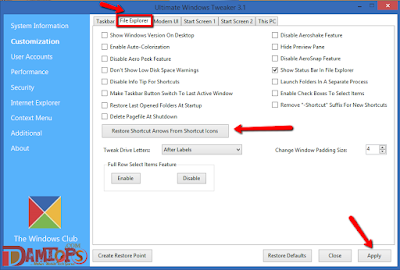
Click on "File Explorer" tab, click on "Remove Shortcut Arrows From Shortcut Icons" then click on Apply then Close.
Ultimate Windows Tweaker to remove desktop icon arrow
In my screenshot above, it displayed "Restore Shortcut Arrows From Shortcut Icons" because I had already clicked on remove shortcut Arrow From Shortcut Icons, you can also click it to restore the desktop arrow back. That's all... Enjoy Tweaking Your PC with Ultimate Windows Tweaker. 

Read More »

Wednesday, 28 September 2016

How to Turn Your Laptop into Touchscreen Using AirBar

Do you know you can now turn your non-touchscreen laptop into touchscreen? I guess you think that's strange right, Actually I was overwhelmed when I saw the display of the new gadget in action. This gadget turns any old or new laptop into a touch screen laptop completely.
turn your PC into touchscreen
PC Using AirBar
This new gadget is called AirBar, it's a lot easy to use, you don’t have to remove a single screw to do it, Once you’ve plugged it in to a USB port of laptop AirBar blankets your display with “an invisible light field,” which Neonode refers to as “zForce AIR technology.”

What you need to know about Airbar


AirBar is a slim module that is magnetically attached at the bottom of a PC’s display. When attached and plugged into the USB port the sensor is activated it then projects an invisible light field on the surface of your display that makes it possible to "touch" the screen and interact with Windows® 8 and 10 gestures. PC users can then interact with their devices using familiar touch actions like swiping, pinching, zooming and scrolling. AirBar is a portable solution to be used at home, in the office, at school or when traveling and can be used with fingers, gloves, long fingernails and even paintbrushes.

AirBar doesn’t require any special software to work its magic. As long as it’s connected to a Windows 7, 8, or 10 machine — or a Chromebook — it’ll just work once it’s been plugged in. According to Neonode "we are still working on Mac support, but sure it’s coming". Airbar is a lot like the infrared big-screen add-ons made by keytec.

How Airbar Works


One of the coolest things about AirBar is that it doesn’t matter what you touch the screen with. You don’t have to use a special stylus or your fingers, Airbar Works with Brushes, with brush you can drag and drop the brushes to make a painting this is very interesting in this device because most of the touchscreen laptops doesn’t allows you to use brushes on the screen, it also works with Gloves this means if you are wearing a glove and you want to work on your laptop without removing your gloves so its amazing you can work smoothly. The reason you can use anything to touch is that the light field reacts to any disturbance. So raise your hand and make sure you're first in line.

AirBar Technical specifications

  • Display Size Supported: 15.6”, with an aspect ratio of 16:9
  • Width: 5 mm
  • Length: 373 mm (AirBar 15.6”)
  • Height: 12 mm (requires 15 mm mounting surface for 3 mm between AirBar and display)
  • Cable length: 243 mm
  • Weight: 55 g

This gadget is not out yet, but you can pre-order for it from the AirBar Official Website.

Source: Air.Bar and geek.com


Read More »

Saturday, 17 September 2016

How to Turn Your Mobile Phone into A Remote Control

Do you know you can turn your mobile device into a remote control for your computer? I guess you think that's a bit weird right. Actually I was making some research on some cool functions mobile devices can perform then I came across this awesome function of turning mobile device into a complete remote control for computer using Unified Remote app and server.
How to turn Android into a Remote control
For those of you who want to have a remote control for their computer for watching TV, or maybe for listening to music and much more. In this tutorial I will show you how to make your mobile device a remote control for your computer also how to create Wi-Fi hotspots on Windows PC.

Don't Miss: How to Make Your Android Keyboard Play Sound as You Type

What is Unified Remote?


Unified Remote app is the one-and-only remote control app for computer, it turns mobile device into a WiFi or Bluetooth universal remote control for Windows PC, Mac and Linux.
Unified Remote
Unified Remote app gives your mobile phone control over mouse & keyboard, media players, presentations, screen mirroring, power control, file manager, terminal, and much more.

Watch this short demo:

Read Also: Top 20 Proxy Sites To Surf The Net Anonymously

How can I turn my Mobile Phone to a remote control


To get started you will need to download Unified Remote on your mobile device. Unified Remote is available for all mobile platforms. Download Unified Remote app on Playstore, AppStore and Microsoft Store.

Also you need to download Unified Remote Server for your computer. Unified Remote Server is available for Windows, Mac OS X and Linux. Download Unified Remote for Windows here, Mac OS X here and Linux here.
After downloading and installing the app and software on both mobile and PC, to "Connect" your PC must have functioning Bluetooth or PC Wi-Fi hotspots, but the fastest and most preferable is Wi-Fi hotspots.

Once everything is installed, open the app on your mobile phone and it will guide you through the process of connecting to the app to your computer. Make sure your device and computer are paired using Bluetooth or on the same Wi-Fi network.

In case your PC does not have Wi-Fi hotspots not the usual (mobile Wi-Fi hotspots connection), you can create it manually or download OSToto Hotspots for your computer here.

That's all... Enjoy the experience...

Read More »

Sunday, 28 August 2016

how to fix PC not detecting Android Phone through USB connection

This post is sourced from HOVATEK, you can get the original post Here. When you connect your Android phone to the PC (both Internal and SD card) are meant to be detected together. But there are some cases where you connect Android phone to PC and you hear a USB connection sound and yet nothing is detected or displayed on the screen, this also happen to me when I connect Android phone to a PC for the first time even when the Android phone has been connected to the PC before, yet I still get this problem.

I checked under Device Manager and noticed that MTP had a warning icon (yellow triangle) on it meaning it had somehow malfunctioned. On right-clicking and selecting properties, I saw

This device is not configured correctly. (Code 1)
A service installation section in this INF is invalid.
To find a driver for this device, click Update Drive.

So I decided to find a lasting solution. Today I will show you how to fix MTP USB Device Driver not configured correctly.
How to Fix MTP USB Device Driver (USB Device not configured correctly)

You simply need to install the Media Transfer Protocol Porting Kit Download MTP and
Media Feature Pack for N and KN versions of Windows for Windows 7 here, Windows 8Windows 8.1 or Windows 10 here, depending on which your PC is running on. Also, ensure to download the 32 or 64 bit version depending on which your PC is running on.

How do I know if my PC is a 32 or 64 bit PC?

To check this, right-click My Computer (or This PC) and select Properties. Youll find it in front of System Type.
Read More »

Friday, 26 August 2016

How to Copy and Browse an Entire Website while Offline Using HTTRACK

Anytime we want to access or make a research on the internet and browse a website or webpage, definitely Wi-Fi or data connection must be active. Do you know you can get information or browse through an entire website or webpage while completely offline or internet disabled? The answer Is Yes. In this tutorial I will show you how to copy an entire website or webpage for offline usage. There are quite a number of software that can perform this operation, in this tutorial we will use HTTRACK.
copy website using httrack

HTTrack is a free (GPL, libre/free software) and easy-to-use offline browser utility. It allows you to download a World Wide Web site from the Internet to a local directory, building recursively all directories, getting HTML, images, and other files from the server to your computer.

HTTRACK is easy and user friendly and another thing good about httrack you can cancel the mirroring process at anytime and you will be able to load the downloaded/mirrored webpage at your own convenience without internet connection.

How to Browse an entire website or webpage while offline using HTTRACK


Download HTTRACK from this link, it's available for any platform Download HTTRACK

Open the zip file, locate WinHTTRACK.exe double click to run it.

HTTRACK homepage will display, click Next

On the next page, New Project Name and Project Category fill both with any name, click Next

Action: select "download web site (s)" from the drop down arrow, in case you have already downloaded the webpage and you want to update, click "update existing page".

Click Add Url to add the url link, click ok

Click Set Options then un-tick Use Proxy for Ftp transfer, click Ok

Click Next, then click Finish

HTTRACK will start mirroring the site into your computer

Like I said earlier, you can cancel the process at anytime to access the already mirrored content.

Click Finish

To locate the copied / mirrored contents, click File at the top left corner then click Browse Sites

The copied content will be displayed base on the name you assign to the project.

That's all, Enjoy browsing offline, and don't forget to share.
Read More »

Monday, 11 July 2016

Best Alternative To Adobe Pdf Reader On Computer

That time when you need a software urgently, then you use the search engine and you're given some crap results, This actually happened to me, I wanted to download Pdf file reader for PC running window 8, I got different results not knowing that all I wanted was already on the system which most people don't know.

Best Alternative Pdf Reader for PC 
I know most users of top PC browser software like Chrome, Mozilla and Uc Browser don't know that there's Pdf reader already installed in these powerful softwares which compound Pdf system view smoothly and beautiful.

How To Use PC Browser To Open Pdf File
1. Right Click on the file > click open with
2. Search for your already installed browser
3. Select it and feel the beauty..

Tested with a robust Pdf file of 1100+ Pages 

Mozilla Result

Uc Browser Result

Chrome Result 

I tried with Internet Explorer but the was not responding

I think powerful browser developers like Chrome, Mozilla, Uc Browser need to make users know there's Pdf file reader already installed on these softwares.
Read More »

Thursday, 9 June 2016

Whatsapp Is Now Available On Computer (See Steps)

Today I will show you how to set-up your WhatsApp account on computer (PC), WhatsApp offers two different solutions for using its service on a computer: WhatsApp Web or desktop apps for Windows and OS X.
Requirement

According to WhatsApp support page, you can use either WhatsApp product (web or desktop app) if your phone is one of the following:

  • Android
  • iPhone 8.1+
  • Windows Phone 8.0 and 8.1
  • Nokia S60, Nokia S40 EVO
  • BlackBerry and BlackBerry 10


When you're using WhatsApp on a computer, your phone will still need to have a data or Wi-Fi connection. That's because the platform essentially mirrors the app on your smartphone. So if, for example, you're traveling in another country and your phone doesn't have a connection, you won't be able to use WhatsApp on another device.

How to set up WhatsApp Web

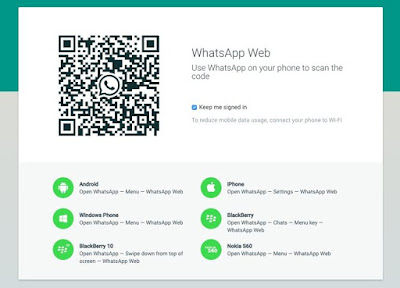
Using Chrome, FireFox, Opera, Safari,Uc Browser or Edge on your pc, goto to https://web.whatsapp.com/. a QR scan will show up waiting for scanning as shown below


Now open your whatsapp on your phone > click option> select WhatsApp Web> A display launcher will show up or click the + sign at the top right corner

Then set phone camera to the QR scan code on your PC browser

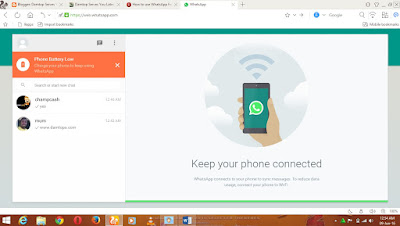
After you scan the code, you'll be able to see your WhatsApp messages on your phone and in the browser. You won't need a Wi-Fi connection for your phone

The WhatsApp Web layout mirrors the mobile experience, just on a larger scale. You can still send emojis, photos and voice notes, view your contact list and receive notifications on the computer.

How to set up WhatsApp's desktop app

Setting up the desktop app is similar to setting up WhatsApp Web, but with one exception -- you need to download and install the application first.
Download the Mac or Windows version of the app from www.whatsapp.com/download

Mac users will need to unzip the file, then move WhatsApp to the Applications folder.

Windows users will need to run the .exe file and follow the prompts.

When the app launches, you'll see a QR code for you to scan with the WhatsApp phone app. Just below the code, you'll see directions to help you find that scanning option on the app. For example, in the iOS app, tap Settings, then WhatsApp Web.

After you scan the code, you'll be able to see your WhatsApp messages on your phone and in the browser. You won't need a Wi-Fi connection for your phone

The layout of WhatsApp's desktop apps mirror the Web and mobile experience.

You can still send emojis, photos and voice notes, view your contact list and receive notifications on the computer.

that's my WhatsApp Icon on Desktop
Read More »